FamilyCare is a Progressive Web App (PWA) — no app store needed. Visit
fc.4xon.com in Chrome or Safari, then tap Add to Home Screen from
the browser menu. It installs like a native app with offline support, push alerts, and full-screen mode.
Android users can also download it from the Google Play Store.
Family Alert lets you send instant encrypted messages to family members — no phone number needed. Messages use AES-GCM-256 end-to-end encryption so only your family can read them. Choose from 40 preset messages in Hindi, Punjabi, or English, or type your own. Alerts arrive as push notifications even when the app is closed.
The Voice Calculator understands spoken Hindi and English. Say "जमा पाँच सौ रुपये" to credit ₹500 or "काटो दो सौ" to debit ₹200. It supports date-based transaction pages so you can browse history by day. Switch to Quick Calc mode for rapid one-tap arithmetic without voice.
FamilyCare Free gives you the core dashboard. Pro / Trial unlocks:
🔒 Expense Tracker with GST/HSN support
🎓 School Management module
🇫🇷 FamLingo French Language lessons
🧮 Voice Calculator full mode
☁️ Google Drive Sync (encrypted backup)
Pay via UPI or Razorpay. After payment, share the screenshot with the admin for instant activation.
FamilyCare is built on a privacy-first architecture. All personal data is stored
locally on your device using encrypted localStorage and IndexedDB.
Encryption uses PBKDF2-SHA256 + AES-GCM-256 + HMAC-SHA256.
The optional Google Drive Sync also uses AES-256-GCM before upload — Anthropic, Google, or any server
can never read your data. No ads. No tracking. No server-side collection.
The built-in Image Editor includes a full Background Remover with multiple tools: Sobel Edge Detection for automatic edge tracing, a Magic Wand for colour-flood selection, a Lasso tool for freehand selection, and an unlimited Undo stack. All processing happens on-device — no photo is ever sent to a server.
Open Settings → Language and choose from English, हिंदी (Hindi), or ਪੰਜਾਬੀ (Punjabi). The app's UI, TTS voice, and preset messages all switch instantly. The Voice Calculator also switches its speech recognition model to match your chosen language.
This error means your device lost internet connection before FamilyCare could load.
Chrome shows net::ERR_INTERNET_DISCONNECTED and a red "You are offline" bar at the bottom.
Quick fixes:
1. Turn Wi-Fi or Mobile Data off → back on and reload the page.
2. Check you haven't accidentally enabled Airplane Mode.
3. If on Wi-Fi, move closer to the router or try switching to mobile data.
4. If data is on but still failing, restart your browser and try again.
Use offline mode: If you installed FamilyCare as a PWA (Add to Home Screen), most features work offline automatically — open it from your home screen icon instead of the browser.
Google Drive Auth errors happen when the OAuth 2.0 token expires or Google revokes
app access. To fix it:
1. Go to Settings → Cloud Backup → Google Drive.
2. Tap "Disconnect" to remove the old token.
3. Tap "Connect Google Drive" and sign in again — a fresh token will be issued.
4. Trigger a manual sync to confirm backup works.
If the issue repeats, visit myaccount.google.com/permissions and revoke then re-grant access to FamilyCare.
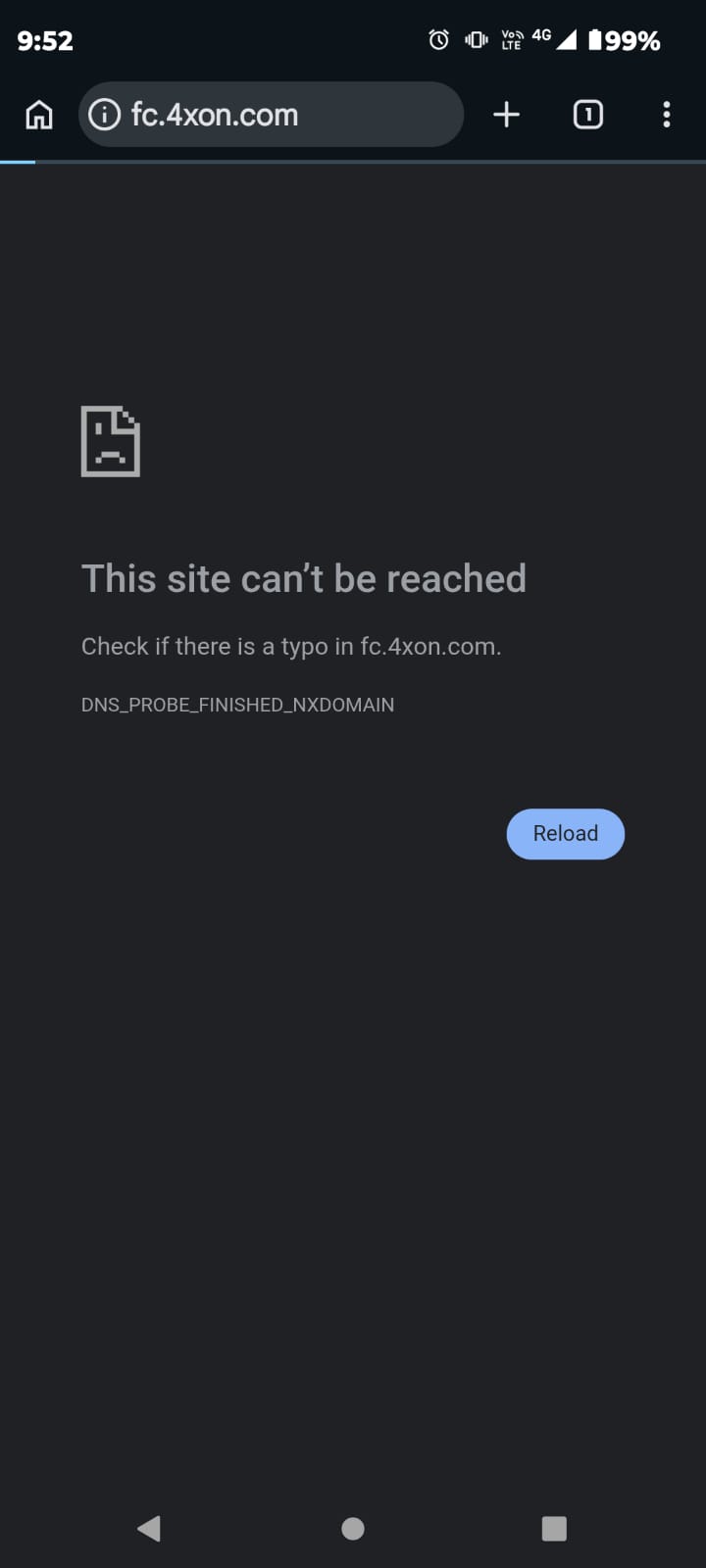
✅ The website is working fine — if it opens on another phone, laptop, or in
private/incognito mode, the problem is not the server. Your browser or device has
a cached bad DNS record and keeps using the old/wrong address even though
fc.4xon.com is perfectly live.
🔧 Fix it — try in order:
1. Use Incognito mode (quickest fix)
Open Chrome → tap ⋮ → New Incognito Tab → visit fc.4xon.com.
If it loads, the issue is confirmed as a cache problem.
2. Clear Chrome's DNS cache
In Chrome address bar type: chrome://net-internals/#dns
Tap "Clear host cache" → then reload fc.4xon.com.
3. Clear browser cache & cookies
Chrome → Settings → Privacy → Clear browsing data → tick
Cached images and Cookies → Clear.
4. Restart your phone
A full restart clears the OS-level DNS cache on Android/iOS.
5. Switch your DNS server
Go to Wi-Fi Settings → tap your network → Advanced → DNS → change to
8.8.8.8 (Google) or 1.1.1.1 (Cloudflare).
6. Switch network
Toggle between Wi-Fi and Mobile Data — different networks use different DNS servers
and one of them likely has the correct record.
No questions match your search.
Try a different keyword or category.